

What this Site Connect screenshot shows
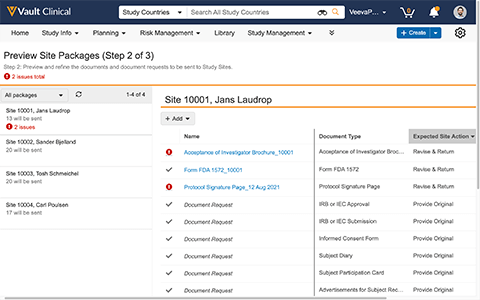
This interface displays the "Preview Site Packages (Step 2 of 3)" screen within the Vault Clinical application, specifically showcasing the Site Package Preview workflow. The screen is designed to let users preview and refine documents and document requests before they are sent to study sites. The layout is split into a left-hand navigation panel listing multiple study sites and a right-hand detail panel showing the specific documents associated with the selected site. In this demonstration, Site 10001, Jans Laudrop, is selected, displaying thirteen items to be sent, along with an alert indicating two issues. The interface provides a structured view of document names, document types, and expected site actions, such as "Revise & Return" or "Provide Original," helping users verify the package contents prior to proceeding to the final step of the distribution process.
Visible interface elements
- "Preview Site Packages (Step 2 of 3)" page title indicating the current step in the document preparation workflow.
- Left sidebar listing four study sites with document counts and issue alerts.
- Red warning banner displaying "2 issues total" at the top of the workspace.
- Detailed document table showing columns for status, document name, document type, and expected site action.
- "+ Add" dropdown button located above the document table for modifying the package.
- Status icons, including checkmarks and red exclamation marks, indicating the readiness of individual documents.
- Expected site action column displaying instructions such as "Revise & Return" and "Provide Original."
Interface details
The user interface features a standard Vault Clinical header with global navigation tabs, search functionality, and a utility bar. Below this header, the main workspace is divided into two primary sections. The left sidebar displays a list of four study sites, including Site 10001, Site 10002, Site 10003, and Site 10004, along with the count of documents to be sent for each. A red warning icon highlights that Site 10001 contains two issues. The right panel presents the detailed document list for the selected site under the header "Site 10001, Jans Laudrop." This panel includes an "+ Add" dropdown button and a structured table. The table columns display status indicators, document names, document types, and expected site actions. Status indicators include checkmarks for ready items and red exclamation icons for items with issues, such as the "Acceptance of Investigator Brochure_10001" and the "Protocol Signature Page_12 Aug 2021." Expected site actions are categorized into actions like "Revise & Return" and "Provide Original," providing clear instructions for each listed item.
Workflow context
In clinical trial operations, managing the distribution of essential document packages to various research sites is a critical step in study start-up and execution. This interface represents the preview and refinement stage of that process. By presenting a consolidated view of pending document packages, the system can support clinical operations users in verifying that the correct files and requests are targeted to each site. The visible error indicators could help users identify missing information or incorrect document states before transmission, potentially reducing communication delays with investigators. The categorization of expected site actions, such as requesting an original document or requiring a revision, provides clear guidance on the next steps for the site staff. This structured preview step can help ensure administrative accuracy and support smoother collaboration between sponsors, contract research organizations, and clinical trial sites during the document exchange workflow.
Source, version, and interpretation limits
The description of this interface is based on a static, public screenshot of the Veeva Site Connect interface from the IntuitionLabs public Veeva screenshot catalog. Because this is a static image, it cannot establish real-time data synchronization, automated validation, or active integration with external electronic trial master files. The visible names, site numbers, dates, and document counts represent synthetic demonstration data rather than actual clinical trial records. Additionally, the specific fields, available actions, and layout configurations may vary depending on the individual customer configuration, user permissions, and the specific version of the Vault Clinical software in use.
Authoritative references
Use these primary sources to confirm current product positioning, terminology, and release-specific behavior.
- IntuitionLabs public Veeva screenshot catalog(Public screenshot catalog)
- Veeva Site Connect product overview(Official Veeva product page)
- Veeva Site Connect features brief(Official Veeva resource)