

What this eTMF screenshot shows
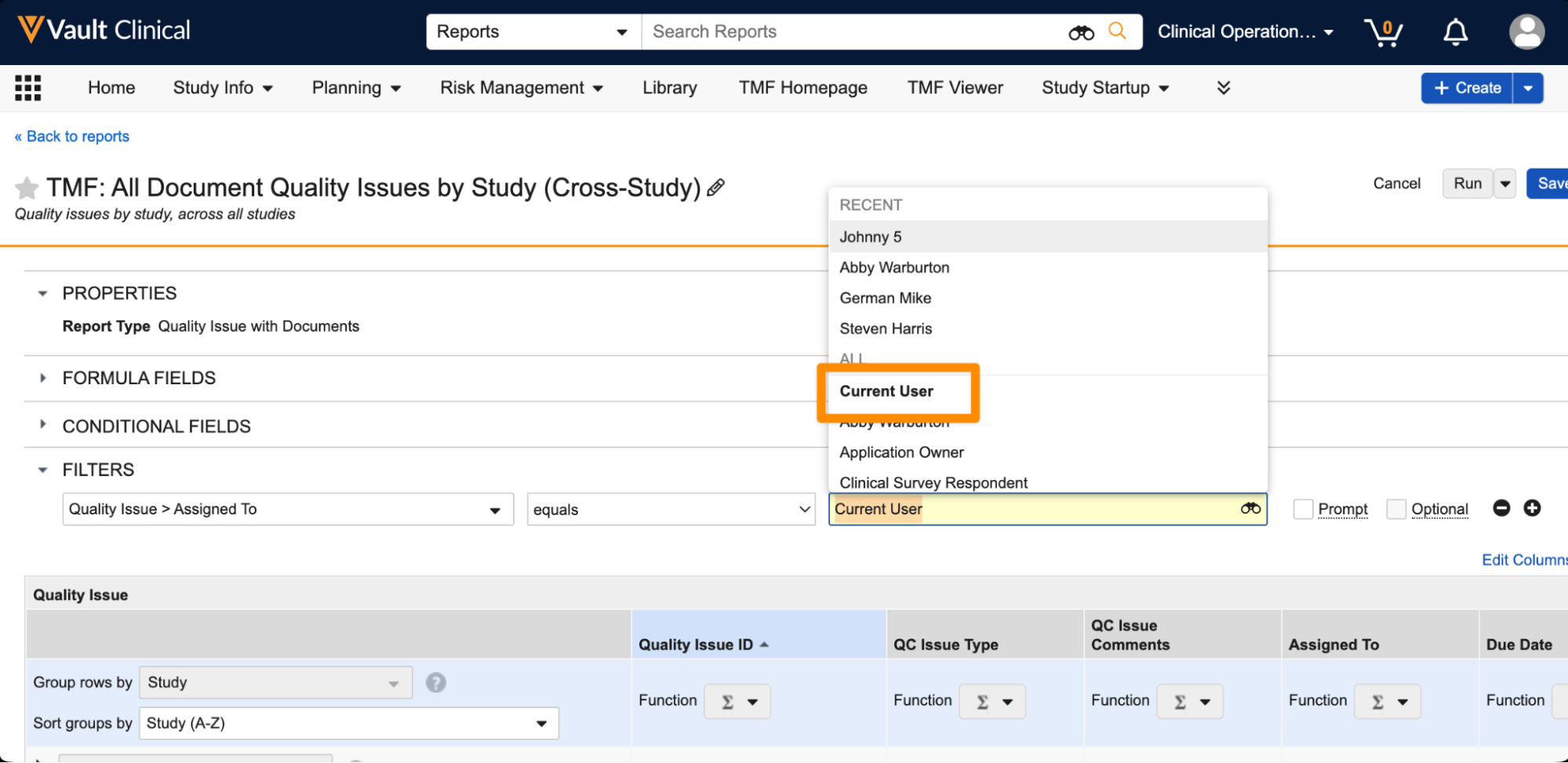
This interface reference displays the report configuration screen within Veeva Vault Clinical, specifically focused on the "TMF: All Document Quality Issues by Study (Cross-Study)" report. The screen allows users to define parameters, filters, and grouping options for tracking quality issues across multiple clinical trials. The report type is designated as "Quality Issue with Documents." The interface showcases a filter configuration where the "Quality Issue > Assigned To" field is being set to "Current User" via an active dropdown menu. Below the filter settings, a preview structure outlines how the report data will be organized, showing grouping options by Study and columns for Quality Issue ID, QC Issue Type, QC Issue Comments, Assigned To, and Due Date. This configuration interface supports clinical operations teams in structuring their document quality reviews.
Visible interface elements
- Report title 'TMF: All Document Quality Issues by Study (Cross-Study)' with an edit icon.
- Properties section displaying the Report Type as 'Quality Issue with Documents'.
- Active filter dropdown menu highlighting 'Current User' with other synthetic names listed.
- Row grouping configuration set to 'Study' and sorting set to 'Study (A-Z)'.
- Column headers for Quality Issue ID, QC Issue Type, QC Issue Comments, Assigned To, and Due Date.
- Global navigation tabs including TMF Homepage, TMF Viewer, and Study Startup.
- Action buttons for Cancel, Run, and Save in the upper right corner.
Interface details
The interface is structured with a standard Veeva Vault Clinical header, featuring global navigation tabs such as Study Info, Planning, Risk Management, TMF Homepage, and TMF Viewer. Below the navigation, the report builder workspace displays the report title with an edit icon and a subtitle explaining its purpose. The configuration area is divided into collapsible sections: Properties, Formula Fields, Conditional Fields, and Filters. Under the expanded Filters section, a specific filter is configured for "Quality Issue > Assigned To" using an "equals" operator. An open dropdown menu highlights "Current User" within an orange selection box, displaying other synthetic user names like Johnny 5 and Abby Warburton. To the right of the filter, checkboxes for "Prompt" and "Optional" are visible alongside add and remove icons. The lower portion of the screen contains the report layout designer under the "Quality Issue" header. Here, users can configure row grouping, set to "Study," and sorting, set to "Study (A-Z)." Column headers include Quality Issue ID, QC Issue Type, QC Issue Comments, Assigned To, and Due Date, each equipped with a function selector represented by a sigma icon.
Workflow context
In clinical trial management, maintaining an inspection-ready Trial Master File requires continuous monitoring of document quality. This report configuration interface can support clinical operations specialists and study managers in identifying outstanding quality issues across multiple studies. By filtering the "Assigned To" field to the "Current User," the system can generate personalized dashboards that help individual team members prioritize their immediate tasks. The grouping and sorting options by Study allow managers to identify which trials may require additional oversight or corrective actions. This structured approach to reporting could help organizations streamline their quality control workflows, track remediation progress, and prepare for regulatory audits by ensuring that document issues are systematically logged, assigned, and resolved. The configuration options shown demonstrate how a user can customize their view to focus on specific operational metrics without needing complex database queries.
Source, version, and interpretation limits
The screenshot is sourced from the IntuitionLabs public Veeva screenshot catalog and represents the Veeva Vault eTMF interface, specifically release 24R1.3. The data displayed, including names like Johnny 5 and Abby Warburton, is synthetic demonstration data and does not represent real clinical trials or actual personnel. Because this is a static image, it cannot verify real-time data synchronization, automated workflows, regulatory compliance status, or active integration with other clinical systems. Additionally, the visible configuration options, field labels, and available reports may vary depending on individual customer configurations, user permissions, and specific software release versions implemented by an organization.
Authoritative references
Use these primary sources to confirm current product positioning, terminology, and release-specific behavior.
- IntuitionLabs public Veeva screenshot catalog(Public screenshot catalog)
- Veeva eTMF product overview(Official Veeva product page)
- Veeva guide to eTMF features and inspection readiness(Official Veeva resource)