

What this eTMF screenshot shows
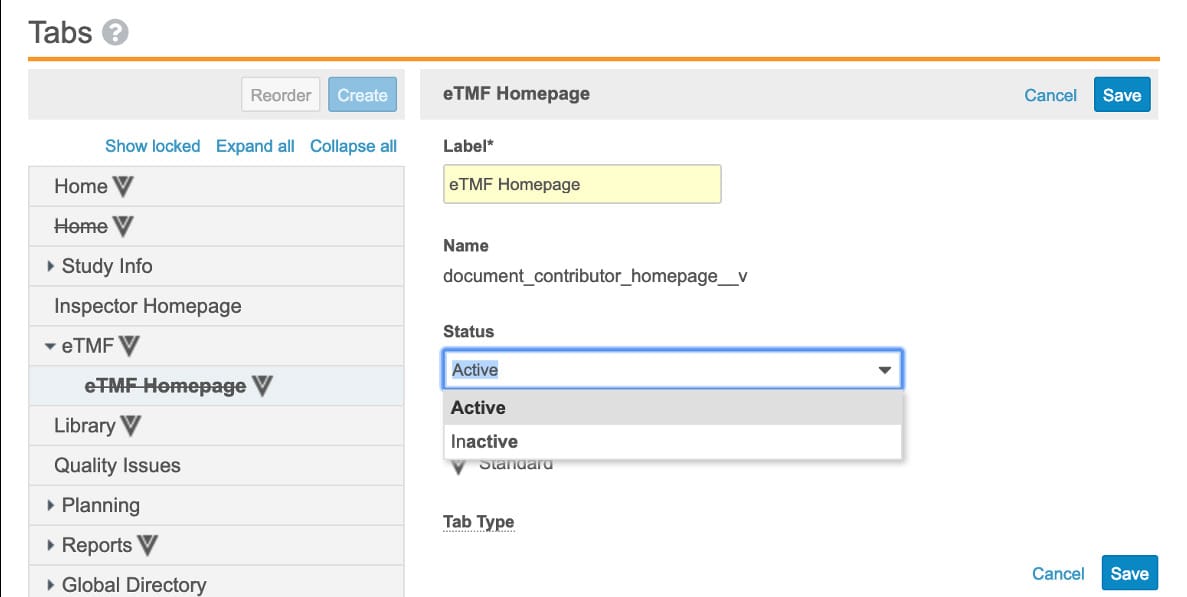
This interface screenshot displays the Tabs configuration screen within the administration settings of Veeva Vault eTMF. The screen provides administrators with a structured layout to manage the visibility, hierarchy, and properties of various navigation tabs within the application. On the left side, a hierarchical tree list displays existing tabs such as Home, Study Info, Inspector Homepage, and eTMF, along with options to reorder or create new tabs. On the right side, a configuration panel allows administrators to edit the properties of a selected tab, in this case, the eTMF Homepage. Visible fields include the tab label, system name, status dropdown, and tab type. This administrative interface supports the organization of the user navigation experience by allowing system administrators to activate, deactivate, or rename specific tabs to align with their clinical operations workflows.
Visible interface elements
- Tabs header with a help icon at the top left of the interface.
- Left-hand navigation tree displaying tab hierarchies including Home, Study Info, and eTMF.
- Reorder and Create buttons located above the tab navigation tree.
- Struck-through text for the eTMF Homepage entry within the left-hand list.
- Label text field on the right panel containing the highlighted text eTMF Homepage.
- Expanded Status dropdown menu showing Active and Inactive options.
- Save and Cancel buttons positioned at the top and bottom of the configuration panel.
Interface details
The interface is divided into two primary columns under a main header titled Tabs. The left column contains a tab navigation tree with administrative controls. At the top of this column, users can access Reorder and Create buttons, alongside text links to Show locked, Expand all, and Collapse all. The tree list below displays several standard and custom tabs, some marked with a stylized V icon indicating standard Veeva components. Notably, the eTMF Homepage tab under the eTMF parent tab appears struck through in the list. The right column displays the configuration details for the selected eTMF Homepage tab. This panel features Cancel and Save buttons at both the top and bottom right corners. The configuration fields include a required Label text box containing the value eTMF Homepage, a read-only Name field displaying document_contributor_homepage__v, and a Status dropdown menu. The Status dropdown is currently expanded, presenting Active and Inactive as selectable options, with Active highlighted. Below this, a Tab Type field is partially visible, showing a standard classification.
Workflow context
In clinical trial management, maintaining an organized and intuitive user interface is important for study teams, monitors, and inspectors. This tab administration screen can support system administrators in tailoring the Veeva Vault eTMF navigation to match specific study requirements. For instance, configuring the visibility of the eTMF Homepage or the Inspector Homepage could help streamline access for different user roles. By adjusting the status of a tab to active or inactive, administrators can control which navigation pathways are available to users, potentially reducing clutter and improving operational efficiency. The ability to reorder and structure tabs hierarchically allows organizations to prioritize high-frequency areas, such as Quality Issues or Reports, ensuring that critical document management and tracking tools are easily accessible to the clinical operations team during the course of a trial.
Source, version, and interpretation limits
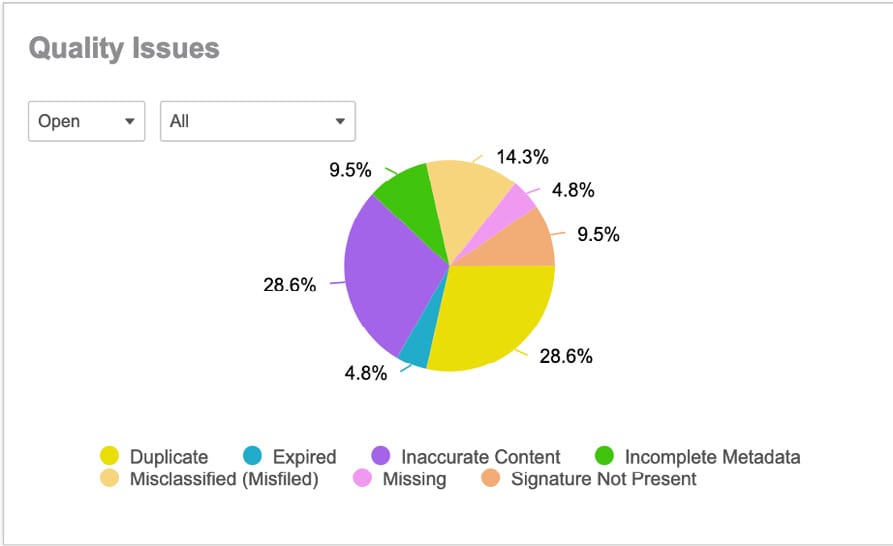
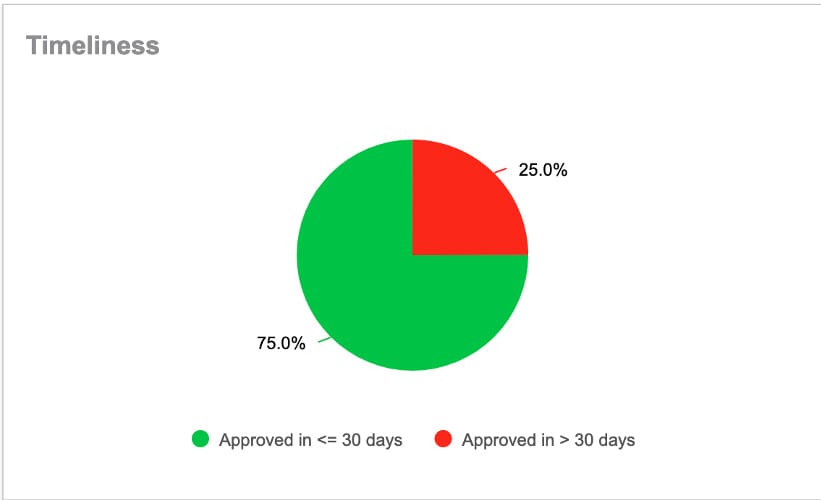
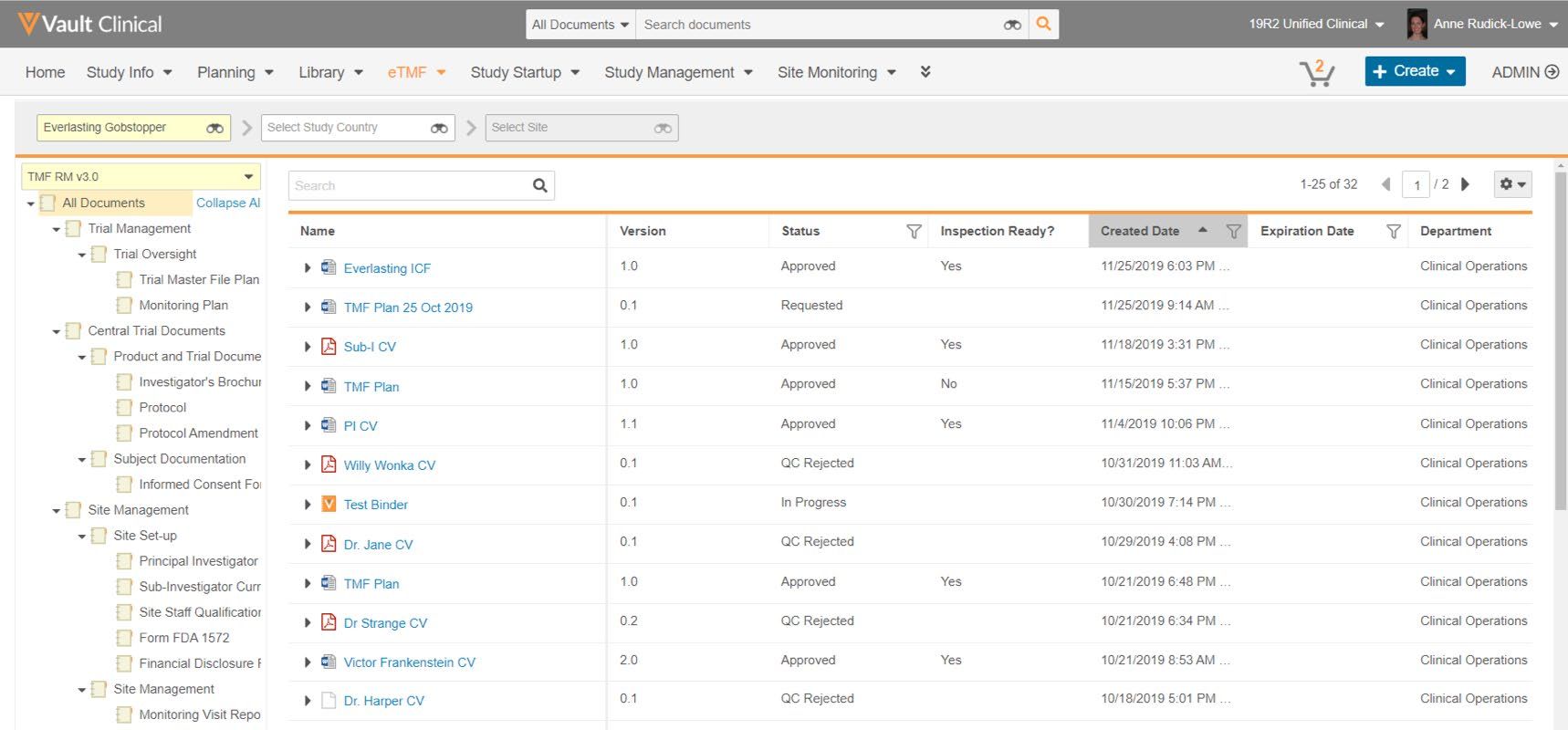
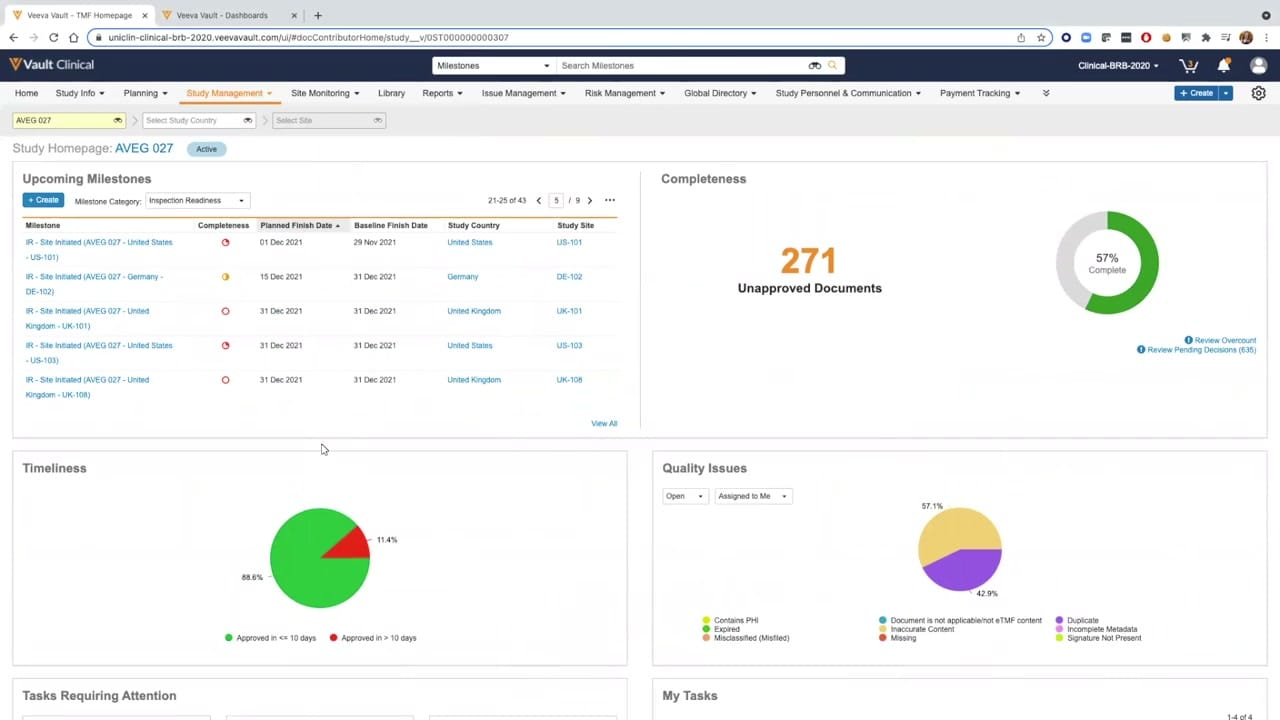
The screenshot is sourced from the TMF Homepage feature brief, an official Veeva PDF. Because this is a static image, it does not reflect real-time system behavior, active database connections, or the complete range of administrative configurations available in a live environment. The visible tabs, labels, and status settings represent synthetic demonstration data configured for illustrative purposes. Actual administrative interfaces, available fields, and navigation structures may vary depending on the specific Veeva Vault release, customer-specific configurations, and user permission levels. This reference does not establish regulatory compliance or validate the system for active clinical trials.
Authoritative references
Use these primary sources to confirm current product positioning, terminology, and release-specific behavior.
- TMF Homepage feature brief(Official Veeva PDF)
- Veeva eTMF product overview(Official Veeva product page)
- Veeva guide to eTMF features and inspection readiness(Official Veeva resource)