

What this eTMF screenshot shows
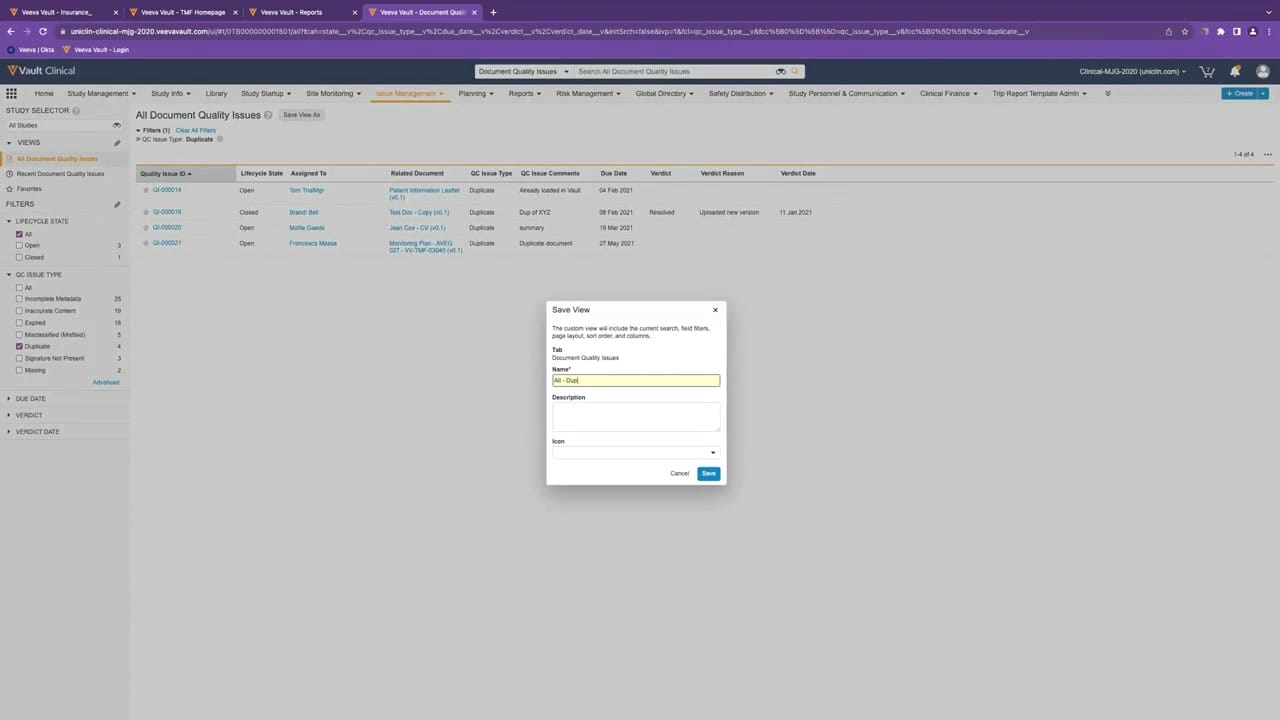
This interface reference displays the "All Document Quality Issues" view within Veeva Vault Clinical, specifically highlighting a modal dialog for saving a custom view. The background screen presents a tabular log of quality issues, filtered to show items categorized under the "Duplicate" QC Issue Type. The active "Save View" dialog overlay allows users to preserve their current search criteria, applied filters, page layout, sort order, and column selections for future access. The underlying table tracks key metadata such as Quality Issue ID, Lifecycle State, Assigned To, Related Document, and Verdict details. This screen illustrates how clinical operations teams can organize, filter, and save specific configurations of document quality issues to streamline their daily oversight tasks within the electronic trial master file application.
Visible interface elements
- "Save View" modal dialog with input fields for Name, Description, and Icon selection.
- "All Document Quality Issues" table displaying columns for Quality Issue ID, Lifecycle State, and Assigned To.
- Left-hand filter panel showing "QC Issue Type" with "Duplicate" selected.
- "Save View As" button located next to the main page header.
- Tabular records displaying synthetic document names such as "Patient Information Leaflet" and "Test Doc - Copy".
- Top navigation bar featuring "Veeva Vault Clinical" branding and a search bar for Document Quality Issues.
Interface details
The interface is structured with a left-hand navigation and filter panel, a central data table, and a prominent modal dialog in the foreground. The left panel contains collapsible filter categories, including Lifecycle State, QC Issue Type, Due Date, Verdict, and Verdict Date. Under QC Issue Type, "Duplicate" is selected, displaying a count of four records. The central table lists these four records with columns for Quality Issue ID, Lifecycle State, Assigned To, Related Document, QC Issue Type, QC Issue Comments, Due Date, Verdict, Verdict Reason, and Verdict Date. The "Save View" modal dialog is centered on the screen, temporarily disabling interaction with the background table. This dialog contains an informational message explaining that the custom view preserves search terms, filters, layout, and columns. It includes a mandatory "Name" text field populated with "All - Dup", an optional "Description" text area, an "Icon" dropdown selector, and action buttons for "Cancel" and "Save" at the bottom right.
Workflow context
In the context of clinical trial document management, identifying and resolving quality issues is essential for maintaining an inspection-ready electronic trial master file. A clinical operations user can utilize this interface to isolate specific types of document discrepancies, such as duplicate files, incomplete metadata, or missing signatures. By applying targeted filters, the user can review the status of outstanding issues, identify who they are assigned to, and track resolution details like verdicts and verdict reasons. Saving these filtered configurations as custom views can support operational efficiency, allowing users to quickly return to specific subsets of issues without manually reapplying filters each time. This capability could help study managers and document specialists monitor outstanding queries, track remediation progress, and maintain oversight of overall TMF quality and completeness throughout the lifecycle of a clinical trial.
Source, version, and interpretation limits
The screenshot is sourced from an official Veeva hosted demo titled "Track, Manage, and Report on Quality Issues," published around 2023. As a static image, it represents a configured demonstration environment and does not reflect real-time data, automated validation, or live system integration. The visible names, documents, dates, and issue records are synthetic demonstration data and do not represent actual clinical trial records. Actual user interfaces, available fields, and workflows may vary depending on the specific Veeva Vault release, organization-specific configurations, and user permissions. This reference is intended solely to illustrate the visual layout and standard interactive patterns of the issue resolution interface.
Authoritative references
Use these primary sources to confirm current product positioning, terminology, and release-specific behavior.
- Track, Manage, and Report on Quality Issues(Official Veeva hosted demo)
- Veeva eTMF product overview(Official Veeva product page)
- Veeva guide to eTMF features and inspection readiness(Official Veeva resource)