

What this CTMS screenshot shows
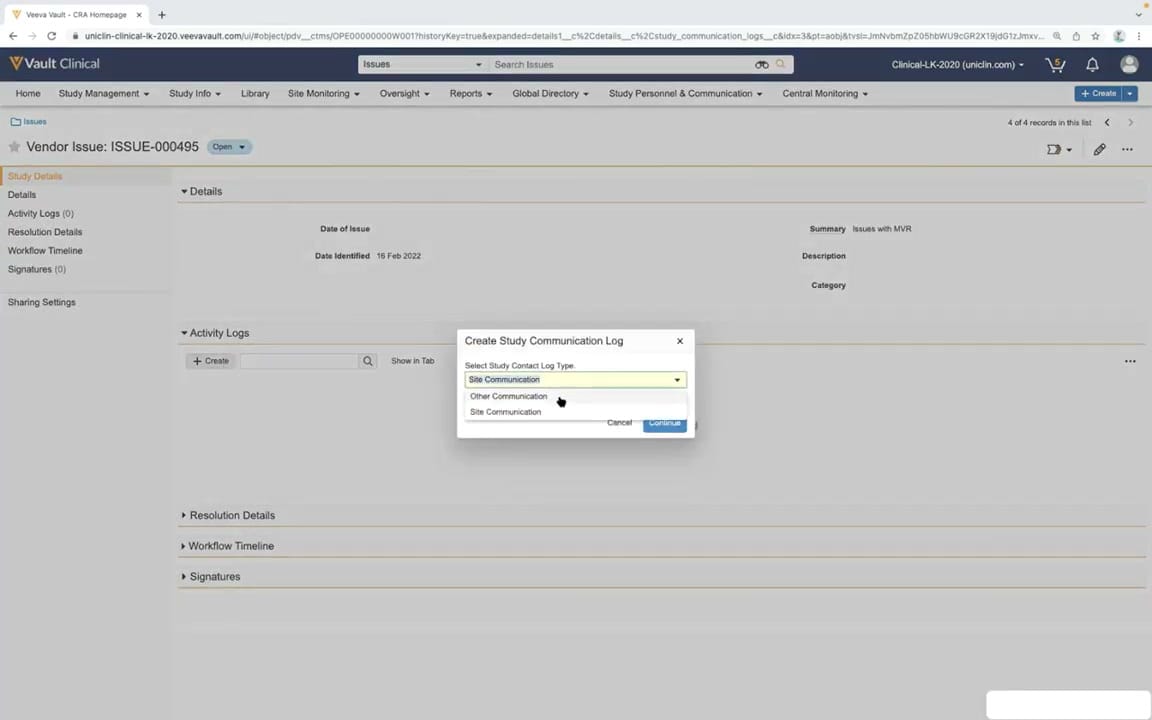
This interface reference shows a Vendor Issue record page within Veeva Vault CTMS, specifically focusing on the creation of a study communication log. The main workspace displays the details of "Vendor Issue: ISSUE-000495", which carries an "Open" status. The record details include fields for the date identified, summary, description, and category. Overlaid on this record page is a modal dialog titled "Create Study Communication Log". This modal prompts the user to select a study contact log type from a dropdown menu, offering options such as "Other Communication" and "Site Communication". This workflow allows clinical operations personnel to document and categorize communications directly associated with an identified vendor issue, maintaining a centralized audit trail of study-related interactions.
Visible interface elements
- "Vendor Issue: ISSUE-000495" record header with an "Open" status badge.
- Left-hand navigation panel listing sections like Details, Activity Logs, and Workflow Timeline.
- "Create Study Communication Log" modal dialog centered over the main workspace.
- Dropdown menu within the modal showing "Other Communication" and "Site Communication" options.
- "Cancel" and "Continue" action buttons at the bottom of the modal dialog.
- "Details" section displaying synthetic data fields such as "Date Identified" and "Summary".
- Top navigation bar with clinical operations tabs including "Site Monitoring", "Oversight", and "Reports".
Interface details
The user interface features a standard Veeva Vault layout with a top navigation bar containing tabs for Study Management, Site Monitoring, Oversight, and Reports. Below this, the primary workspace is dedicated to the "Vendor Issue: ISSUE-000495" record. A left-hand navigation panel allows users to jump to specific sections of the record, including Details, Activity Logs, Resolution Details, Workflow Timeline, and Signatures. The main content area mirrors these sections with collapsible headers. Currently, a modal dialog titled "Create Study Communication Log" is centered on the screen, dimming the background. The modal contains a single dropdown field labeled "Select Study Contact Log Type" with a visible dropdown list showing "Other Communication" and "Site Communication". Action buttons for "Cancel" and "Continue" are positioned at the bottom right of the modal, alongside a close icon in the top right corner. The background record displays synthetic data, such as the date identified as "16 Feb 2022" and the summary "Issues with MVR".
Workflow context
Within clinical trial management, tracking vendor issues and documenting subsequent communications is critical for maintaining study oversight. This interface demonstrates the workflow for initiating a communication log directly from an active vendor issue record. When an issue, such as "Issues with MVR", is identified and logged, clinical operations team members must document interactions with sites or other stakeholders. By launching the "Create Study Communication Log" modal, the user can categorize the communication type before entering detailed notes. This categorization ensures that communications are filed under the correct metadata, facilitating easier retrieval, reporting, and compliance tracking. The workflow bridges issue management and stakeholder communication, ensuring that all actions taken to resolve a vendor issue are documented in a structured, traceable manner within the CTMS environment.
Source, version, and interpretation limits
The screenshot is sourced from the "CTMS Oversight Deep Dive Demo" video published in March 2022. It represents a configured demonstration environment, meaning the visible fields, tabs, and dropdown options reflect a specific setup rather than a universal default. The data displayed, including the issue ID "ISSUE-000495", the date "16 Feb 2022", and the summary "Issues with MVR", is synthetic demonstration data. Actual user interfaces, available actions, and metadata fields may vary based on individual customer configurations, user permissions, and subsequent Veeva Vault software updates. The browser chrome and demo tenant URL are visible in the source image.
Authoritative references
Use these primary sources to confirm current product positioning, terminology, and release-specific behavior.
- CTMS Oversight Deep Dive Demo(Official Veeva YouTube demo)
- Veeva CTMS product overview(Official Veeva product page)
- Veeva CTMS trial-management overview(Official Veeva resource)