

What this Study Startup screenshot shows
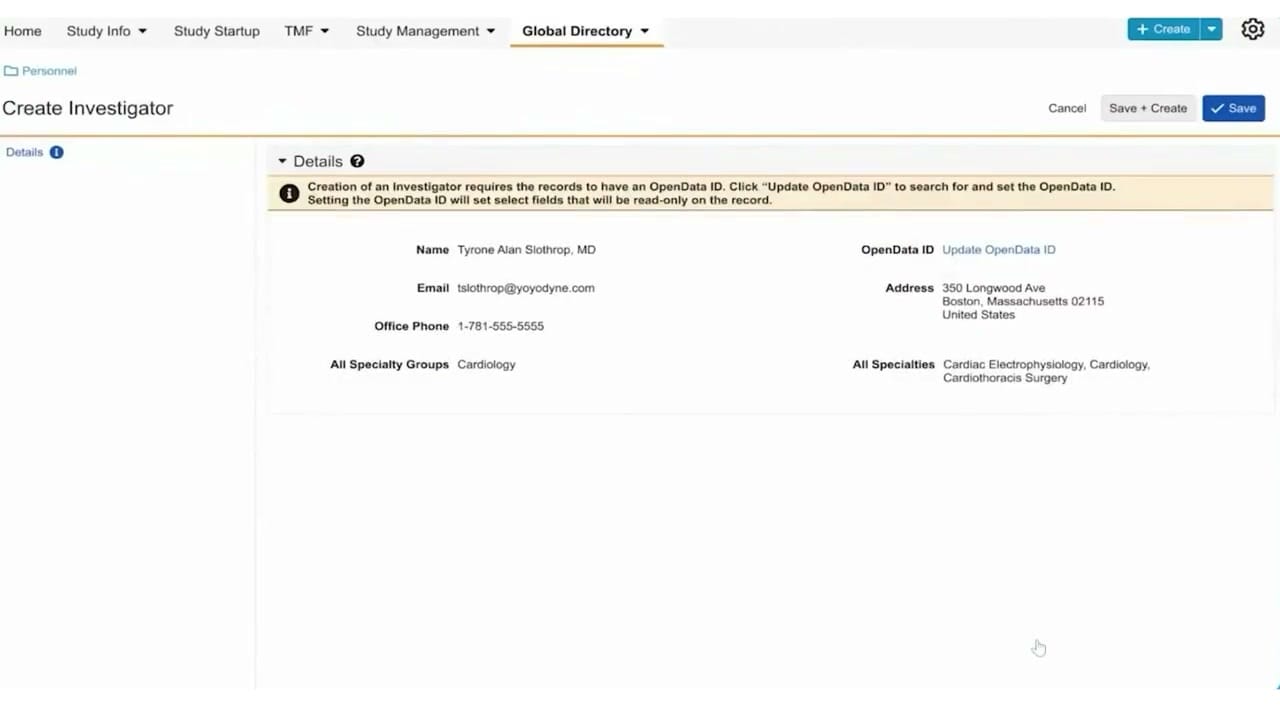
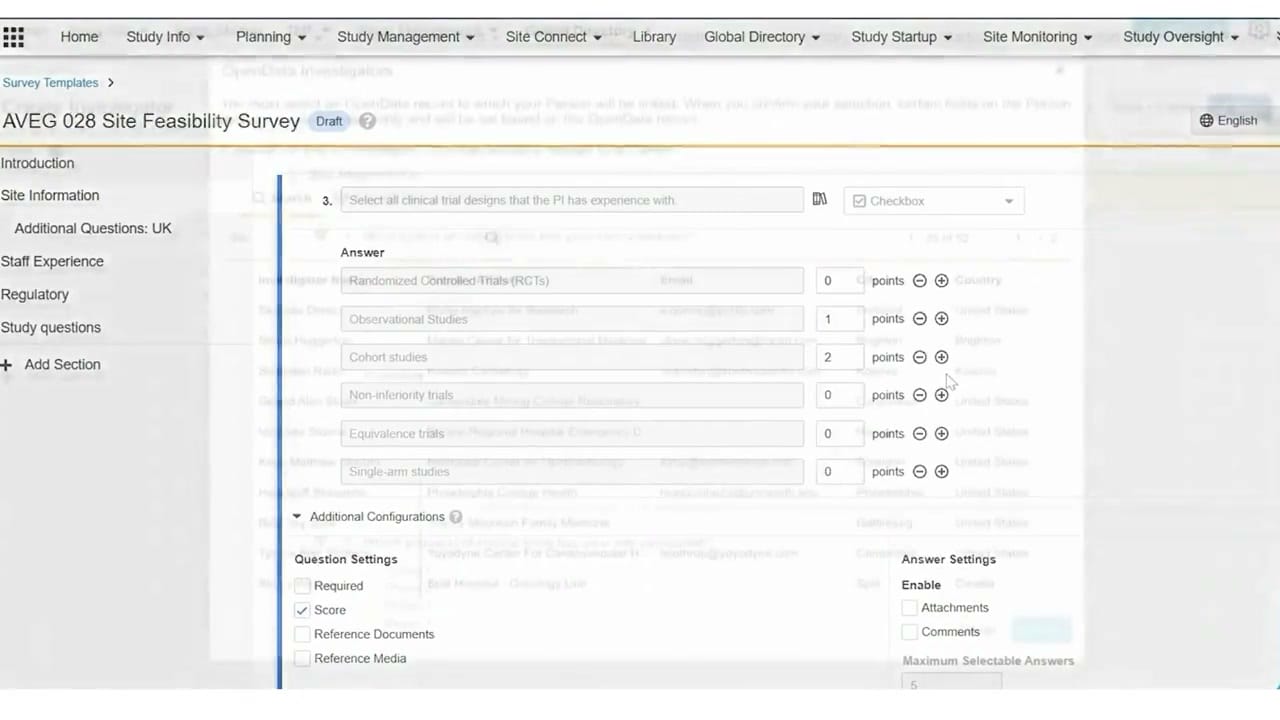
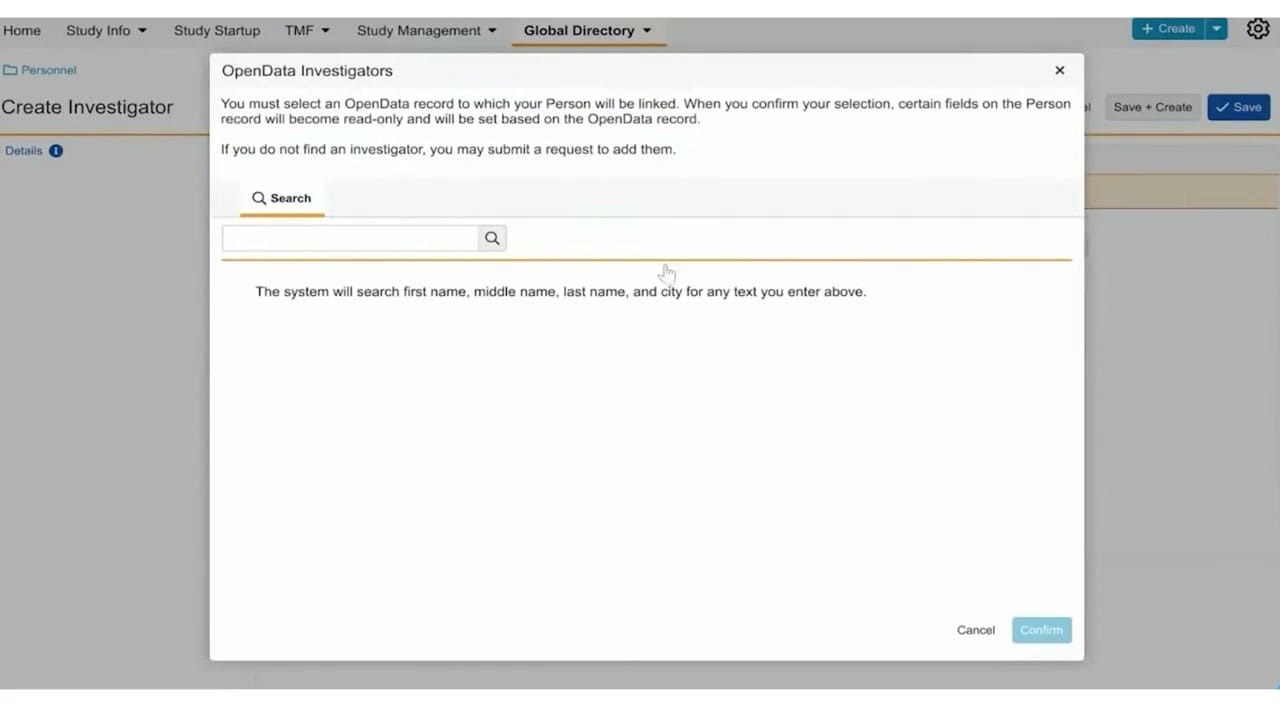
This interface screenshot displays a modal dialog titled "OpenData Investigators" within the Veeva Vault Study Startup application, specifically under the Global Directory tab. The modal appears over the "Create Investigator" page, prompting the user to search for and select an existing OpenData record to link to a new Person record. Linking these records ensures that specific investigator details are populated directly from the reference database, making those fields read-only on the local record. The interface provides clear instructions on how the search functions, noting that it queries first name, middle name, last name, and city. If an investigator is not found, the user is instructed that they can submit a request to add them. This modal serves as an entry point for establishing standardized investigator profiles during the early stages of study startup.
Visible interface elements
- OpenData Investigators modal dialog header with a close icon.
- Instructional text explaining the linking behavior and read-only field outcomes.
- Search input field with a magnifying glass icon under an active Search tab.
- Helper text indicating search parameters include first name, middle name, last name, and city.
- Cancel and Confirm action buttons located in the bottom right corner of the modal.
- Global Directory tab highlighted in the top navigation bar.
- Create Investigator page title and Save buttons visible in the background.
Interface details
The interface features a clean, modal-driven layout overlaid on the main "Create Investigator" screen. At the top of the page, the primary navigation bar highlights "Global Directory" as the active tab, alongside other options like Study Info, Study Startup, TMF, and Study Management. The modal itself, titled "OpenData Investigators," contains a prominent instructional paragraph explaining the linking behavior and field read-only status. Below this text, a single "Search" tab is active, featuring an empty text input field with a magnifying glass icon. Directly beneath the input field, a line of helper text clarifies that the search query evaluates first name, middle name, last name, and city. At the bottom right of the modal, two action buttons, "Cancel" and "Confirm," are positioned to manage the user's progression. The "Confirm" button is styled in a muted blue, indicating it is inactive until a selection is made. In the background, the "Create Investigator" page remains partially visible, showing a "Personnel" breadcrumb, a "Details" section header, and action buttons for "Save + Create" and "Save" in the upper right corner.
Workflow context
In clinical operations, establishing accurate investigator profiles is a critical step in the study startup and site feasibility process. This modal supports the workflow of identifying and linking investigators to verified reference data. By requiring users to search the OpenData directory before creating a new investigator record, the system can help prevent duplicate entries and maintain data consistency across the directory. If a match is found and confirmed, the automatic population of read-only fields can streamline data entry and reduce manual transcription errors. For cases where an investigator is not yet present in the database, the workflow accommodates exceptions by allowing users to submit a request for a new addition. This structured search-before-create pattern supports clinical teams in maintaining clean, standardized directories of investigators, which can ultimately assist in site qualification, feasibility assessments, and subsequent study activation tasks.
Source, version, and interpretation limits
The screenshot is sourced from an official Veeva hosted demo titled "Veeva Study Startup Feasibility Surveys," published around 2020. It illustrates a modal workflow for site feasibility and investigator management within a configured Vault environment. Because this is a static screenshot of a demonstration environment, it does not represent live, real-time clinical data, nor does it guarantee specific system performance, automated validation, or regulatory compliance. The visible fields, navigation tabs, and overall layout reflect a specific configuration and software release. Actual user interfaces, available features, and specific data fields may vary depending on individual customer configurations, organizational permissions, and subsequent Veeva Vault software updates.
Authoritative references
Use these primary sources to confirm current product positioning, terminology, and release-specific behavior.
- Veeva Study Startup Feasibility Surveys(Official Veeva hosted demo)
- Veeva Study Startup product overview(Official Veeva product page)
- Veeva Study Startup features(Official Veeva resource)