


Veeva · CRM
Veeva Vault CRM: Zero to Hero
April 12, 2025
Updated July 20, 2026
35 min read
A comprehensive training manual for pharmaceutical sales representatives on using Veeva Vault CRM, covering account management, call logging, CLM presentations, sample distribution, Veeva AI Agents, and data synchronization on iPad, Android, and desktop. Updated for the 2025-2026 Vault platform transition.
Independent editorial content produced with AI assistance. This article is written by IntuitionLabs and is not endorsed by Veeva Systems Inc. Veeva and its product names are trademarks of Veeva Systems Inc. All information is drawn from public sources with citations linked inline. AI-generated text may contain errors or omissions; verify any critical claim against the linked sources before acting on it.

- 01Vault CRM enabled features, workflows, and available actions vary by role, platform, and organization configuration, so reps should rely on their organization's current training rather than assuming a fixed feature set.
- 02As of March 3, 2026, more than 125 customers were live on Vault CRM, and legacy Veeva CRM's end-of-support date was updated to the end of December 2029.
- 03A call report is not complete until required fields are filled, applicable samples are logged with signature capture, and validations pass; submitting locks the call report and generates disbursement or sample-order transactions.
- 04Veeva AI Agents (Pre-call Agent, Voice Agent, Free Text Agent), announced December 2025, help reps prepare for calls, capture notes via voice, and flag compliance issues, all within existing access controls and audit trails.
- 05Mobile (iPad/iPhone) data is stored locally until synced, while desktop/browser use is always online in real time; regular syncing is required to bridge mobile and online data.
- 06Feature availability differs across Browser, iPad, iPhone, and Windows platforms, so reps should not assume a workflow available on one platform works on another.
[Revised May 5, 2026]
Welcome to Veeva Vault CRM! This training manual introduces a new pharmaceutical sales representative to Veeva's customer relationship management (CRM) platform. Vault CRM is a life sciences CRM for field and office-based professionals who work with healthcare professionals and organizations; enabled features vary by role and organization. By the end of this guide, you'll understand the configured workflows for accessing accounts, recording calls, presenting CLM content, documenting sample disbursements, and synchronizing data. Let's get started!
Getting Started with Vault CRM
What is Veeva Vault CRM? Vault CRM is Veeva's life sciences CRM. Its mobile app is available for iPhone and iPad, and access must be authorized by your organization. Use your organization's approved setup and training materials because available workflows and features are configuration-dependent ([1]; Signing into the iOS Application).
Important Platform Update: Vault CRM is Veeva's CRM platform for life sciences. Veeva reported on March 3, 2026 that more than 125 customers were live on Vault CRM and updated the end-of-support date for legacy Veeva CRM to the end of December 2029. Use your organization's approved migration plan and current Vault CRM training; available capabilities and workflows depend on configuration ([2]).
Logging In and Navigation Basics
-
Mobile (iPad/iPhone): Install the Vault CRM app through the method approved by your organization, such as its mobile-device-management service or the App Store. Open the app, enter your username, complete the password or single-sign-on flow, and select the appropriate Vault instance. An initial sync starts when the selected instance is not already on the device. Vault CRM for iPad does not store passwords; depending on configuration, you may be able to use Face ID or Touch ID after initial sign-in ([3]).
-
Browser: Use the Vault CRM URL supplied by your organization and sign in to the appropriate Vault instance. Vault CRM functionality is configuration- and platform-dependent; use your organization's current Vault CRM training for the actions available to your role.
Navigation: Home-page widgets, navigation tabs, and available actions are configured by your organization. Use the labels in your current Vault CRM environment to open modules such as My Accounts and Call Reporting. Vault CRM supports different features on Browser, CRM Desktop (Windows), iPad, iPhone, and Windows, so do not assume that a control or workflow available on one platform is available on another. Mobile devices can synchronize data with Vault; browser users work against the online Vault instance ([4]; Mobile Device Setup Overview).
Tip: If you're using the mobile app, ensure you've done a recent sync before starting your day (more on syncing later). If you're on desktop, you're always online so data is up-to-date by default.
customers live on Vault CRM as of March 2026
updated end-of-support date for legacy Veeva CRM
when Veeva AI Agents for Vault CRM were announced
Accounts: Managing Your Customers
As a sales rep, Accounts (HCPs and HCOs) are the cornerstone of your Vault CRM. The Accounts area stores all the information about the doctors, clinics, or hospitals you cover.
Accessing Account Records
To view your accounts on the iPad app, tap the My Accounts tab (or icon). By default, it lists all accounts visible to you. You can scroll or use the search bar to find a specific HCP by name. On desktop, click the Accounts tab and use the search or filters to locate accounts.
Once you select an account from the list, the Account Details screen displays information and related records according to your organization's configured layout. In Detail view, related lists appear on the left and configured sections and fields appear on the right. The available account information, actions, and related lists vary by role and configuration ([5]).
Key elements of the Account detail:
- Profile Information: The top section (often labeled "Account Information") contains the HCP's details – name, credentials, specialty, address, etc. (as configured by your company). This is read-only unless you have permission to edit certain fields.
- Related Lists / Tabs: You might see sub-sections or tabs such as Addresses, Call History, Samples, Orders, Affiliations, etc. These show records related to the account. For example, "Calls (Account)" might list past call records with this HCP, and "Call Samples" might list samples given to them.
- Actions: Select All Actions on an account to access the actions your role is permitted to use. Vault CRM can provide actions including Edit, Record a Call, and Start Media when they are configured and you have the required permissions. Do not rely on a fixed action list; availability varies by account, platform, permissions, and configuration ([5]).
Pro Tip: Before a meeting, use the account detail screen to review recent activities. The Timeline tab (if enabled) gives an intuitive view of all past and planned interactions with that HCP. This can include previous calls, emails, meetings, etc., helping you quickly catch up on what's been discussed.
Viewing and Updating Account Info
Usually, account data is loaded from a master database, so you won't often create new accounts on the fly (unless your workflow allows it). However, you may update certain fields or add notes if needed:
- To edit an account (e.g., to correct a phone number or add a note), use the Edit action from the account detail. Make your changes and save. (Keep in mind that some fields, like license number or specialty, might be read-only or require approval to change.)
- To see more about account affiliations or hierarchy, use the View Hierarchy action, if available, to see how an HCP is related to an organization or parent account.
- If you need to add a new account (say, a new physician in your territory), check if your org allows reps to add accounts. This might be done via a "New Account" button on the Accounts list or a global action. Fill in the required fields (name, address, specialty, etc.) and save. The new account will sync to the CRM once you perform a sync.
Best Practice: Always search for an account thoroughly before creating a new one, to avoid duplicates. Use multiple search criteria (last name, organization, etc.). Vault CRM might also have account search tools that look across phonetic spellings or alternate names.
Now that you know how to find and view your HCPs, let's move on to recording your interactions with them using Call Reports.
Planning and Logging Calls
A "Call" in Vault CRM represents an interaction or visit with an HCP (whether it's face-to-face, phone, virtual, etc.). Logging calls is one of your most frequent tasks – it's how you record details of your visit, topics discussed, and any follow-up actions or samples given. This section will guide you through creating a call report, filling in key information, and submitting it.
Creating a New Call (Call Report)
There are a few ways to start a new call record (also known as a call report):
- From an Account: As noted, on the Account detail page, select Record a Call from the actions menu. This will open a new call form pre-filled with that account's info.
- From the Home or Calendar: If your Home screen or Calendar has a quick action for "New Call" or if you're planning a future call, you might use a global "New Call" button (some orgs put a + button on the calendar or home page for scheduling calls).
- From CLM Media: On supported configurations, you can launch Start Media from an account or open content from a call report. When content is launched from a call report, Vault CRM tracks the CLM activity on that call. If a presentation is launched directly from the media library, select an account from the media-player action menu to create a call report and save the displayed-slide history ([6]; Creating Calls from the Media Player).
When you initiate a new call, you'll see the Call Report screen where you enter call details. On iPad, this is a form segmented into sections (the layout is configured by your admin). Let's break down a typical call report form:
The call-report layout, fields, and available actions are configured by your organization. Create or access a call from the entry points available in your environment, then complete the required information before submitting it ([7]; Submitting Call Reports).
Filling out the Call Report:
- Call Header (Professional Information): This top section includes key details:
- Account/Attendee: The primary account (HCP) should already be selected if you launched the call from the account. If not, or if you need to change it, you can search and select the account here.
- Date & Time: The call date (and time, if required) defaults to now or to the date you launched it. Adjust if you're logging a past call or planning a future one. (Note: Veeva can enforce rules like not allowing future-dated calls or calls outside business hours depending on config.)
- Location: Often the address of the HCP's office – if the HCP has multiple addresses (e.g., multiple clinics), ensure you select the one where the interaction took place.
- Call Type/Channel: Specify how the interaction occurred, if applicable (e.g., face-to-face, phone call, virtual meeting, etc.). There may be a picklist for Call Channel. Some orgs auto-tag calls coming from an Engage virtual meeting vs. in-person.
- Call Objective: If your company uses call objectives (pre-set goals for the call), you might select or enter what the objective was (e.g., "Introduce new product", "Follow up on sample usage").
- Status: This usually remains "Planned" until you complete and submit the call, which then might mark it "Completed." Often, you won't manually change this – it's system-managed when submitting.
-
Attendees: If you spoke to more than one person (e.g., a group practice or you had accompanying colleagues), you can add additional attendees. By default, the primary account is listed here. You might see a Manage Attendees or Add Attendee button to include other HCPs or contacts present. (For example, in a lunch-and-learn at a clinic, you might log all the doctors who attended as call attendees.)
-
Products Detailed (Detailing): This is a crucial part of the call for pharma reps. You'll record what product(s) or key messages you detailed:
- There might be a section to select one or more products that you discussed.
- If you used digital content (CLM), often the system will automatically capture which slides or key messages were presented (more on this in the CLM section). But you can usually manually add products discussed as well.
- Some configurations include a "Detailing Priority" or other metrics (if you detailed multiple products, you might indicate which was primary vs secondary).
- Call Notes & Feedback: A free-text area to record notes from the meeting – e.g., what the doctor said, any concerns, next steps. Write concise but informative notes that will be useful for future reference or for colleagues who might see the call record.
- Some companies separate "Pre-call plan" notes (entered before the call) and "Post-call" or outcomes. If you documented a call objective, you could note outcome against that objective here.
- Samples and Promotional Items: If you left samples, promotional materials, or brochures:
- You will add each item given. Select the product (and formulation/dosage if needed) and quantity.
- Veeva may enforce sample limits or require certain fields (like Lot # for samples, or a checkbox if it's a controlled substance).
- Example: You detail Drug X 10mg and give 2 samples of it, and a brochure. You'd add "Drug X 10mg – Qty 2" under samples. If a lot number or expiration is needed, select from the dropdown (or scan the sample box's barcode for quick entry if enabled).
- For some items like BRCs (business reply cards or sample request forms), you log them similarly.
-
Follow-Up Actions: Some orgs have fields to capture follow-ups – e.g., schedule a follow-up call, send an email, or invite to event. You can mark these or they may integrate with other parts of CRM (like a follow-up task creation).
-
Signature: If you provided samples (or if it's required for that call), you will capture the HCP's signature before completing the call. (We cover how to capture signatures in the next section.)
Fill in all applicable sections. Veeva often will prevent submission if mandatory info is missing – for instance, if you recorded samples but didn't capture a signature, or if required fields are blank, you'll get an error on submit.
Using CLM Presentations (Closed Loop Marketing)
During a call, you might use Veeva CLM (Closed Loop Marketing) to present approved digital content (visual aids) to the HCP. CLM allows you to present interactive slides on your iPad and automatically record that activity. Here's how to leverage CLM:
-
Launching a Presentation: From an open call report, select Start Media from All Actions or select Media, when that option is enabled. Choose CLM content available to your role. Vault CRM tracks CLM activity on the call report; the media-library view and available content are configuration-dependent ([6]).
-
Navigating Slides: On iPad and iPhone, users can swipe left or right to move between content components. The Vault CRM media player provides navigation controls and can provide options to highlight information, capture reactions, and return to the previous screen. Follow the controls shown in your configured media player ([8]).
-
Engaging the HCP: Use only the approved content and controls available in your configured media player. On supported mobile configurations, CLM controls can highlight information, capture reactions, and return the user to the previous screen ([8]).
-
Capturing Reactions (Optional): If your organization has enabled CLM reactions, you can capture an HCP reaction to the displayed slide using the configured reaction buttons. The available reactions and workflow depend on the CLM model and configuration ([9]).
-
Exiting and Saving CLM Data: When you're done presenting, you usually have an option to return to the call report (often a "Back to Call" or close button). All the slides you showed are automatically recorded in the call report's "Key Messages" or "CLM Details" section. For example, if you presented the Cholecap detail set, the call report will list "Detailed Products: Cholecap" and maybe each key message ID that was shown. This means you don't have to manually enter the products discussed – the system logged it for you as part of the call.
Pro Tip: When CLM activity must be associated with a call, launch the media from the call report. If a presentation was launched from the media library, supported iPad and Windows workflows let you select an account to create a call report and save displayed-slide history; restrictions apply, including that users cannot add attendees to calls created from the media player ([10]).
Also, ensure your iPad has the latest content downloaded before you go out to the field (you can do this by syncing content when you have Wi-Fi – the Media Library will show if updates are available). That way, you won't need internet to present to your customer.
Completing the Call: Samples and Signatures
After the discussion, record any samples or promotional items only through your organization's approved sampling workflow. Vault CRM can record product, quantity, and applicable lot-number information, and some sample or promotional-item types require an HCP signature. Requirements vary by product type, market, and configuration; follow your organization's compliance procedures ([11]).
Here's how to wrap up your call with sampling and signatures:
- In the Samples section of the call, make sure you've added all the products and quantities you are leaving with the HCP. Double-check for accuracy because once submitted, these records become permanent.
- To capture the signature, select Sign from the call report's actions (on iPad, tap the ⋯ More Actions menu and then Sign). This brings up the Signature Capture screen.
The signature-capture screen displays the configured sample information and disclaimer for the HCP to review. On iPad, the user selects Sign from All Actions, presents the screen to the HCP, reviews the captured signature, and selects Accept ([12]).
-
Have the HCP review the information on the signature screen – it will list their license #, the address (ship-to address), and all items they are acknowledging receipt of. This transparency ensures they agree with what's being recorded.
-
The HCP uses a finger or stylus to sign in the box provided.
-
On iPad, users can optionally select the padlock icon to hide the Accept and Cancel actions while the HCP signs, then select the padlock area again to restore them ([12]).
-
Once the signature is captured, tap Accept. The app will usually prompt "Signature captured" and return to the call report. You'll now see an indicator that a signature is attached (and often you cannot edit the samples now that they're signed).
-
Submit the Call: Now you have all details filled and signature done. The final step is to submit or save the call. On iPad, there's typically a Submit button (or Save then Submit if two-step). When you tap submit, Veeva will run validations:
-
Validation criteria check the applicable sample disbursement, license information, and signature status. If validation fails, correct the call report before submitting it.
-
When a call with samples is submitted, the call-report fields become read-only and Vault CRM generates a disbursement sample transaction for each selected sample. BRC products generate sample-order transactions ([13]).
After submission, the call is officially recorded. Your manager or compliance teams can now review it if needed, and it contributes to your call metrics. Great job! You've logged a call from start to finish.
Workflow reminder: Record only the samples and other items actually disbursed, complete the applicable signature or card information, and submit only after required validations are satisfied. Exact sample, license, signature, and quantity requirements depend on product type and configuration ([11]; Submitting a Call with Samples).
After the Call: Syncing Data
If you've been working on the mobile app offline, your call will be stored locally on the iPad until you sync. It's critical to sync regularly to ensure your data is uploaded to the central system and that you receive any updates (like new accounts or content).
How to Sync: On the iPad, there is usually a sync button or menu. This might be an icon (often two arrows forming a circle) or under a menu labeled "Sync" or "Go Online." When you initiate a sync:
- The app sends unsynced mobile-created data to the online Vault server and downloads applicable new data and configuration changes.
- Make sure you have an active internet connection (Wi-Fi or cellular) and leave the app open during the sync. Sync requires an active internet connection and the Vault CRM app to be in the foreground to complete successfully ([14]). If you switch apps or lock the device, the sync may pause or fail.
- The Sync Widget can show sync status, pending uploads, sync errors, and the last successful incremental sync. A full database refresh is a separate operation that re-downloads all Vault CRM data on the device ([15]; Performing a Database Refresh).
Sync options: Your organization may configure incremental blocking sync or non-blocking sync. Non-blocking sync can download data and metadata while you continue using Vault CRM; updates must then be applied. Follow your organization's configuration and use the sync status to confirm that uploads and errors are resolved ([16]; Using the Sync Widget).
Desktop Users: If you logged calls via the desktop (web interface), your data is saved in real-time (no manual sync needed). But if you also use an iPad, remember that the iPad needs to sync to get those updates. In other words, the desktop is online; the mobile app can be offline. So syncing bridges the mobile and online worlds.
Troubleshooting Sync: If a sync fails, Veeva will usually show an error message. Common issues and tips:
- Ensure you have internet and try again.
- If it's a specific record causing an error (e.g., a call that violates a rule), fix that record and re-sync.
- You can check sync logs in the app if available, or contact support if errors persist ([17]). In many cases, a simple app restart and sync will resolve transient issues.
- If your device hasn't synced in a long time, do a Database Refresh (found in Settings or as a special sync type) to realign with the server; this can fix odd inconsistencies.
“Vault CRM and Veeva AI Agents like Pre-call Agent and Voice Agent will drive efficiencies and allow the field to focus on the value parts of their jobs. It’s good for the business, good for HCPs, and great for patients.
Veeva AI Agents (New in 2025-2026)
Veeva announced the availability of Veeva AI Agents for Vault CRM in December 2025. Feature availability and configuration depend on the customer's implementation ([18]).
Available AI Agents
-
Pre-call Agent: Provides insights and suggested actions from relevant data, content, activity, and trends to help field reps prepare for calls.
-
Voice Agent: Enables voice input for Vault CRM, making it faster and easier to capture call notes and follow-up actions. Instead of typing, you can dictate your notes, which improves the depth and quality of call reporting.
-
Free Text Agent: Detects and flags potential issues in call notes to help support accuracy and compliance.
How AI Agents Benefit Field Reps
As stated by Frank Armenante, Novo Nordisk's Director of Field Systems and Projects, in Veeva's AI Agents announcement: “Vault CRM and Veeva AI Agents like Pre-call Agent and Voice Agent will drive efficiencies and allow the field to focus on the value parts of their jobs. It’s good for the business, good for HCPs, and great for patients.”
Key benefits include:
- Reduced preparation time: AI-generated pre-call summaries mean less time researching and more time engaging with HCPs
- Richer call documentation: Voice input makes it easier to capture detailed notes while information is fresh
- Better insights: AI analysis helps identify patterns and opportunities across your territory
- Regulatory compliance: All AI features operate within established user access controls, permissions, and audit trails
Security and Compliance
Veeva AI Agents work seamlessly within the Vault CRM application with direct, secure access to data, documents, and workflows. They operate within established user access controls, permissions, and audit trails – essential for the highly regulated pharmaceutical industry.
Note: Your organization may enable or customize AI Agent features based on your role and regional requirements. Check with your CRM administrator about which AI features are available to you.
Vault CRM on Desktop vs. Mobile
It's worth highlighting some differences and best practices when using Vault CRM on a desktop (web browser) versus the mobile iPad app:
-
User Interface: Vault CRM supports Browser, iPad, iPhone, and Windows platforms, but feature availability varies by platform and configuration. Follow the labels and layouts in your organization's current Vault CRM environment rather than Salesforce Lightning instructions.
-
Online vs Offline: Browser users work in the online Vault instance. iPad and iPhone users can synchronize mobile data with Vault; synchronize before working without connectivity and resolve any pending uploads or errors when connectivity returns. Do not assume a legacy CRM Go Online action or a live-record view is available in Vault CRM ([19]; Sync Overview).
-
Capability availability: Do not assume feature parity across Browser, iPad, iPhone, and Windows. Check the Vault CRM platform-functionality reference and your organization's configuration before planning a workflow on a particular device.
-
Sync Consideration: If you prefer typing out longer call notes, you might do so on the desktop at day's end – just remember not to double-enter. If you logged a call on paper and want to enter it, doing it on either platform is fine, just maintain one source. Many reps use the iPad in the field for speed, and occasionally use the desktop for end-of-day review or printing reports.
- Browser users work against the online Vault instance in real time.
- No manual sync needed since data saves in real time.
- Call data is stored locally on the device until a sync is performed.
- Sync requires an active internet connection and the app to remain in the foreground.
Do not assume feature parity across Browser, iPad, iPhone, and Windows platforms.
Basic Troubleshooting Tips
Even with a well-designed system like Vault CRM, you might encounter hiccups. Here are common issues new reps face and how to resolve them:
-
App won't log in: Confirm that you are using the Vault CRM app and the Vault instance supplied by your organization. The standard iOS flow uses a username followed by a password or configured SSO flow; contact your organization's CRM support team for account or password assistance ([3]).
-
Data isn't syncing / missing data: Initiate sync when you have connectivity and review the Errors tab or Sync Widget for the specific records causing an error. Correct the issue where possible, or contact your CRM support team. A database refresh first uploads unsynced data, then clears the mobile database and re-downloads data from Vault CRM; it fails if sync errors are present. It is not a local-data merge ([20]; Performing a Database Refresh).
-
App performance (slow or freezing): Follow your organization's support process and device-management policy. Confirm that you are using the approved current version of the Vault CRM app; if the problem persists, provide the details to your CRM support team ([1]).
-
CLM content not playing or showing: Confirm that the presentation is available to your role and downloaded when required by your configuration. If content still fails to display, report the presentation and device details to your CRM or content-support team. Vault CRM displays CLM HTML content in WKWebView and documents platform-specific media considerations ([8]).
-
Error messages on call submission: Read the validation message and correct the underlying call-report data or contact your CRM support team. For calls with samples, Vault CRM validates applicable product, quantity, license, signature, and sample-card information; requirements compound when multiple product types are selected. Do not attempt to bypass configured validation controls ([13]).
-
Logging out or user switch: Follow your organization's approved device and environment process. Vault CRM for iPad supports multiple users on one device, with each user's data and CLM content stored separately ([3]).
If issues persist, contact your CRM support team and consult Vault CRM Help. For sync issues, Vault CRM provides error details and supported resolution paths in the Errors tab and its sync-error documentation ([20]).
Best Practices for Field Reps Using Vault CRM
To wrap up this "Zero to Hero" guide, here are some best practices and tips to help you be efficient and get the most out of Vault CRM:
-
Sync reliably: Follow your organization's sync schedule and confirm that pending uploads and sync errors are resolved. Vault CRM supports Autosync, Non-Blocking Sync, Incremental Sync, and Database Refresh; the appropriate method depends on configuration and connectivity.
-
Prepare with Account Insights and AI Agents: Before each call, review the account in Veeva. Check the Timeline or recent call notes for that HCP. If your organization has enabled Veeva AI Agents (available since December 2025), use the Pre-call Agent for AI-generated insights and suggested actions based on relevant data, content, activity, and trends. You can also check the Suggestions or Next Best Action features if available (these might appear as alerts or on the home page). These AI-driven tips can remind you of key messages to cover or follow-ups to do, helping you have a more productive call.
-
Quality Data In = Quality Insights Out: Fill in your call details thoroughly and accurately. This isn't just paperwork – the data you enter can be used to analyze your territory, plan marketing strategies, and ensure compliance. For example, accurate logging of calls and samples helps verify that you're meeting requirements (like not exceeding sample limits, or call frequency targets). It also means next time you or a colleague prepares for a call with that HCP, the information is all there.
-
Use CLM to Engage, Not as a Checklist: Use approved CLM content in accordance with your organization's promotional and compliance processes. On supported configurations, the media player can track CLM activity associated with a call report, including the displayed-content order. Do not assume that optional features such as custom presentations or Approved Email are enabled ([6]).
-
Stay Within Compliance: Vault CRM is built with pharma compliance in mind. Always follow prompts and required fields: if it asks for a signature, it's not optional. If an HCP is marked as "No-See" or has opted out of something, respect that – the system might even block certain actions (like you won't be able to schedule a call if an HCP is restricted). These rules protect you and the company.
-
Leverage Training Resources: This guide is a starting point. Your company may have additional training, and Veeva itself offers modules (sometimes called Flight Plan training). These often include videos and interactive scenarios to practice. Take advantage of them to deepen your understanding. The more proficient you become, the more you can use Vault CRM to help strategize your approach (e.g., using the Cycle Plans or Territory Plans if your org uses those features for targeting).
-
Keep Your Devices and App Updated: Follow company policy for operating-system and Vault CRM app updates. Vault CRM can be configured for non-blocking sync, which downloads data and metadata while users continue working; updates must then be applied ([1]; Using Non-Blocking Sync).
-
Time Management: Use the CRM to help manage your schedule. Log your calls promptly – many reps do it immediately after the call in the car (while parked!) or in the lobby. This way details are fresh. If your organization has enabled the Voice Agent (new in 2025), you can dictate your call notes instead of typing, making it even faster to capture detailed information. If you can't log immediately, at least jot notes and update by day's end. Use the Calendar if available in Veeva to track upcoming appointments and ensure they are captured in the system (some orgs require scheduling calls in advance on the calendar, then completing them – follow whatever process your team uses).
-
Data Security: Remember that the iPad has sensitive data (HCP info, possibly patient-related notes if any, etc.). Use the device passcode and the app's security features. Veeva might log you out after a period of inactivity – that's normal. Don't circumvent security measures, they're there for privacy compliance (HIPAA, etc., as applicable).
By adhering to these best practices, you'll not only stay compliant but also make Vault CRM a true productivity tool rather than a chore. Over time, you'll appreciate how it streamlines your daily tasks – from planning routes with the right targets, to pulling up a product brochure in two taps, to analyzing your call coverage at quarter-end.
Conclusion
Congratulations – you've gone from zero to hero in the basics of Veeva Vault CRM for a pharma sales rep! We covered how to access and navigate the system, manage your accounts, log calls with all the pertinent information (including detailing and samples), leverage CLM digital content, utilize new AI Agents for enhanced productivity, sync your data, and troubleshoot common issues. With this foundation, you should feel confident using Vault CRM in your day-to-day workflow.
What's Next for Veeva Vault CRM: Veeva reported in March 2026 that more than 125 customers were live on Vault CRM. Its December 2025 announcement said that additional AI Agents for clinical, regulatory, safety, quality, medical, and commercial use cases were planned throughout 2026; consult your organization's current training and Veeva release information for available capabilities ([2]; Veeva AI announcement).
Remember, the key to mastery is consistent use and exploration. Don't be afraid to click around (in a non-customer-facing moment) to see what information is available at your fingertips – for example, explore an account's Sphere of Influence network diagram if your org uses that, or check out the Order Management module if you take orders in the field. This manual is a starting point. For current product details and configuration-specific workflows, use Vault CRM Help and your organization's approved training materials.
Your journey in pharma sales will be busy, but Vault CRM is there to help you stay organized, informed, and compliant. Happy selling, and may you build great relationships with your HCPs, powered by Veeva Vault CRM!
About IntuitionLabs
Build practical AI for pharma and biotech with IntuitionLabs. We help life-science teams turn complex information and workflows into useful software, governed knowledge systems and AI tools.
IntuitionLabs is an AI consulting, custom software development and data engineering firm serving pharmaceutical, biotechnology, medical-device and other life-science organizations. We work with clinical, regulatory, medical-affairs, commercial, quality and IT teams to connect technology decisions with the work people need to accomplish.
AI consulting and adoption
Our AI enablement services cover readiness assessments, use-case selection, governance and policies, team workshops, adoption measurement and ongoing advisory support. We help organizations structure the information layer behind AI: source material, context, permissions and maintained knowledge that make generated answers useful and reviewable. Private LLM inference and hosted AI options support teams evaluating how to operate AI with appropriate control over their data and infrastructure.
Software, data and life-science workflows
IntuitionLabs develops custom software for pharma and biotech, integrates enterprise systems, and builds data engineering and business intelligence solutions. Areas of focus include AI agents, regulatory research, medical writing, medical affairs, CMC information, competitive intelligence and clinical-document workflows. Our eTMF intelligence work includes cross-system reconciliation and inspection-readiness support.
Enterprise platforms and regulated delivery
We provide Veeva services, application support, managed services, integrations and custom applications, alongside enterprise content work involving platforms such as Egnyte. For regulated workflows, our services include GxP enablement, computer-system validation and software development addressing 21 CFR Part 11 requirements. The applicable controls, validation responsibilities and acceptance criteria are defined for each engagement.
Work with IntuitionLabs
Explore AI enablement, pharma and biotech software development, data engineering and BI, and Veeva services. Contact IntuitionLabs to discuss your workflow, information sources and implementation needs.
IntuitionLabs publishes educational research to help life-science teams make informed technology decisions. Coverage of a product or organization does not imply a client relationship, endorsement or partnership.
Sources / 20

Need Expert Guidance on This Topic?
Let's discuss how IntuitionLabs can help you navigate the challenges covered in this article.
I'm Adrien Laurent, Founder & CEO of IntuitionLabs. With 25+ years of experience in enterprise software development, I specialize in creating custom AI solutions for the pharmaceutical and life science industries.
The information contained in this document is provided for educational and informational purposes only. We make no representations or warranties of any kind, express or implied, about the completeness, accuracy, reliability, suitability, or availability of the information contained herein. Any reliance you place on such information is strictly at your own risk. In no event will IntuitionLabs.ai or its representatives be liable for any loss or damage including without limitation, indirect or consequential loss or damage, or any loss or damage whatsoever arising from the use of information presented in this document. This document may contain content generated with the assistance of artificial intelligence technologies. AI-generated content may contain errors, omissions, or inaccuracies. Readers are advised to independently verify any critical information before acting upon it. All product names, logos, brands, trademarks, and registered trademarks mentioned in this document are the property of their respective owners. All company, product, and service names used in this document are for identification purposes only. Use of these names, logos, trademarks, and brands does not imply endorsement by the respective trademark holders. IntuitionLabs.ai is an AI software development company specializing in helping life-science companies implement and leverage artificial intelligence solutions. Founded in 2023 by Adrien Laurent and based in San Jose, California. This document does not constitute professional or legal advice. For specific guidance related to your business needs, please consult with appropriate qualified professionals.
Related Articles
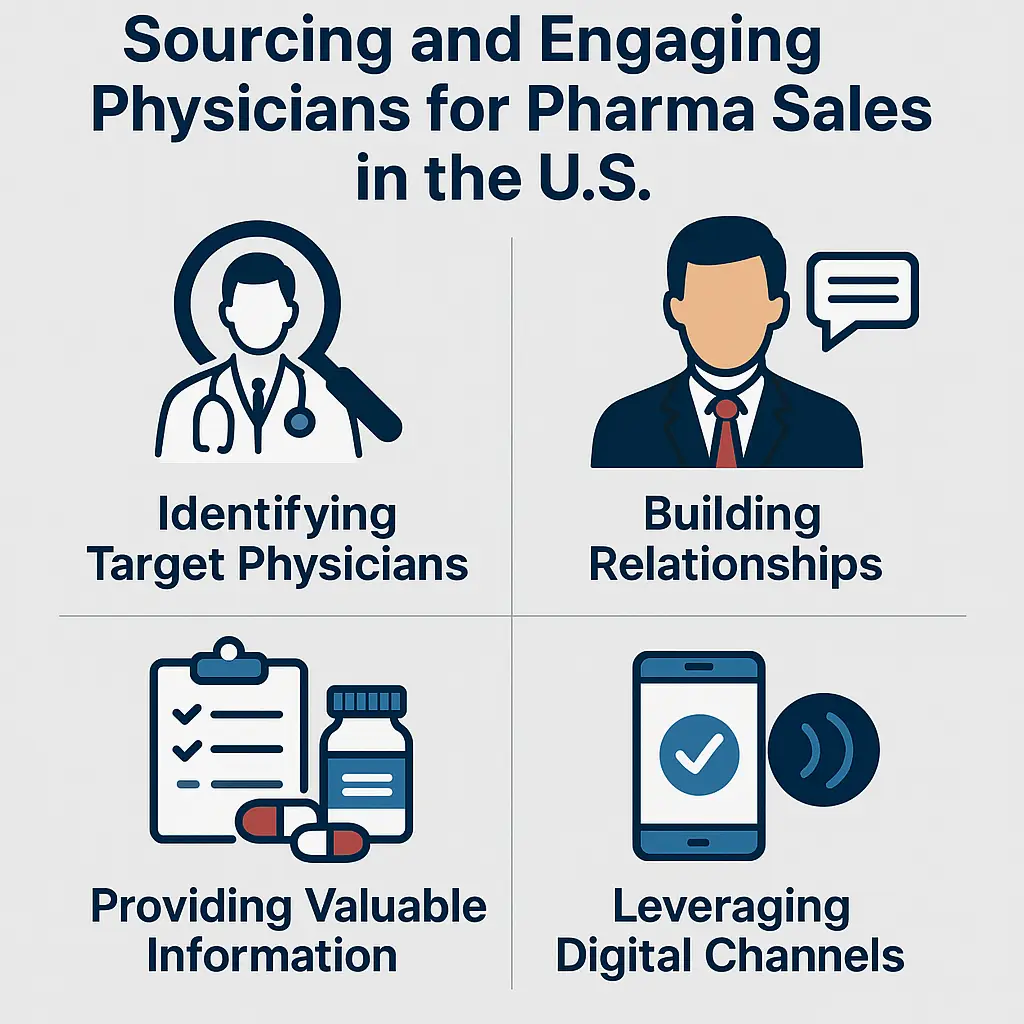
Sourcing and Engaging Physicians for Pharma Sales in the U.S.
A comprehensive guide to how pharmaceutical companies identify, segment, and engage healthcare professionals (HCPs) for sales outreach, covering databases, targeting strategies, digital tools, and compliance considerations.
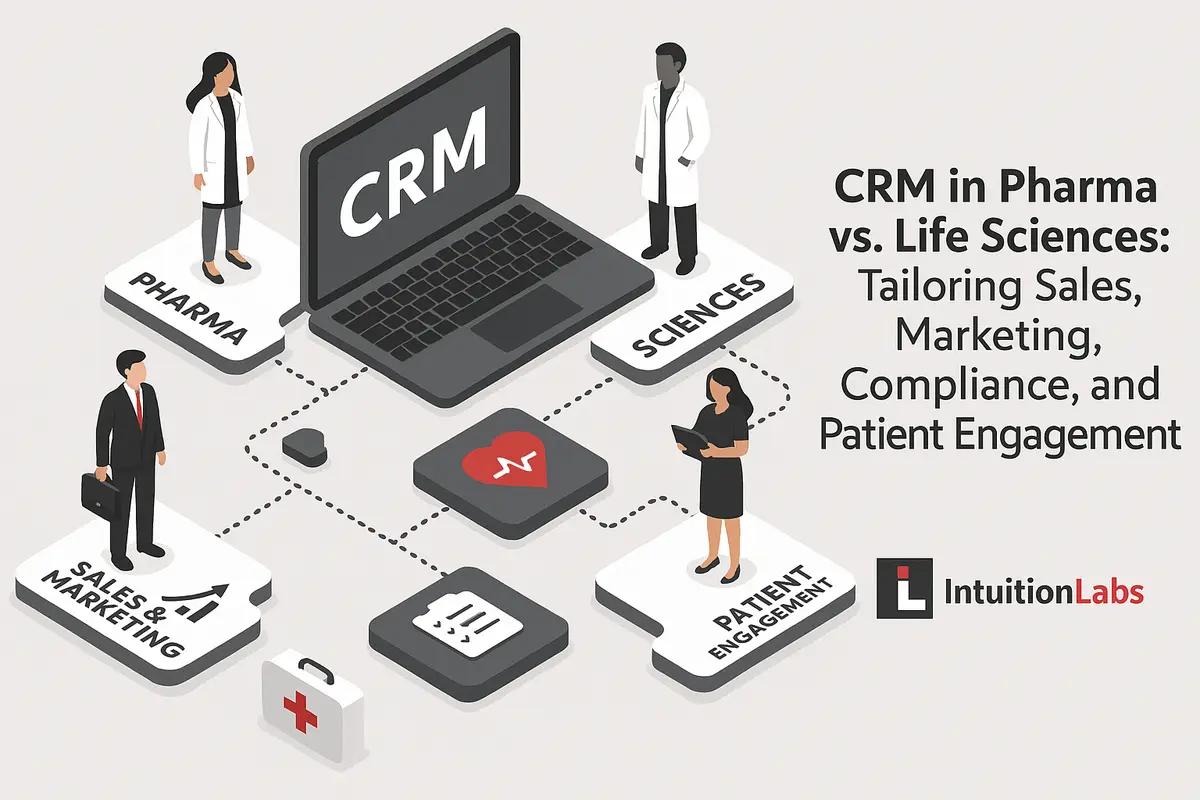
CRM in Pharma vs. Life Sciences: Tailoring Sales, Marketing, Compliance, and Patient Engagement
A comprehensive comparison of CRM requirements between pharmaceutical companies and other life sciences organizations, examining key differences in sales, marketing, compliance, and patient engagement approaches.
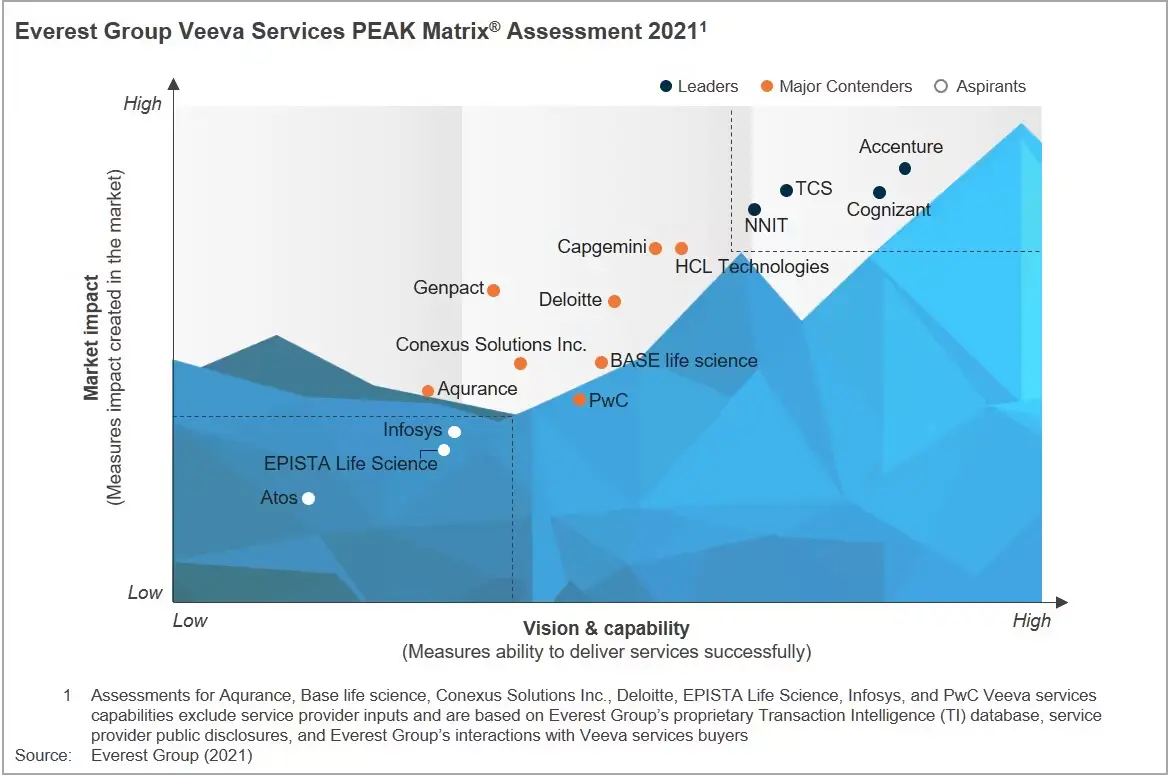
Veeva Systems 2021-2026: Evolution of a Life Sciences Cloud Leader
In-depth analysis of Veeva Systems' transformation from 2021 to 2026, examining strategic shifts, product innovations including AI Agents, Vault CRM adoption, and continued market leadership in life sciences cloud solutions. Updated January 2026.